
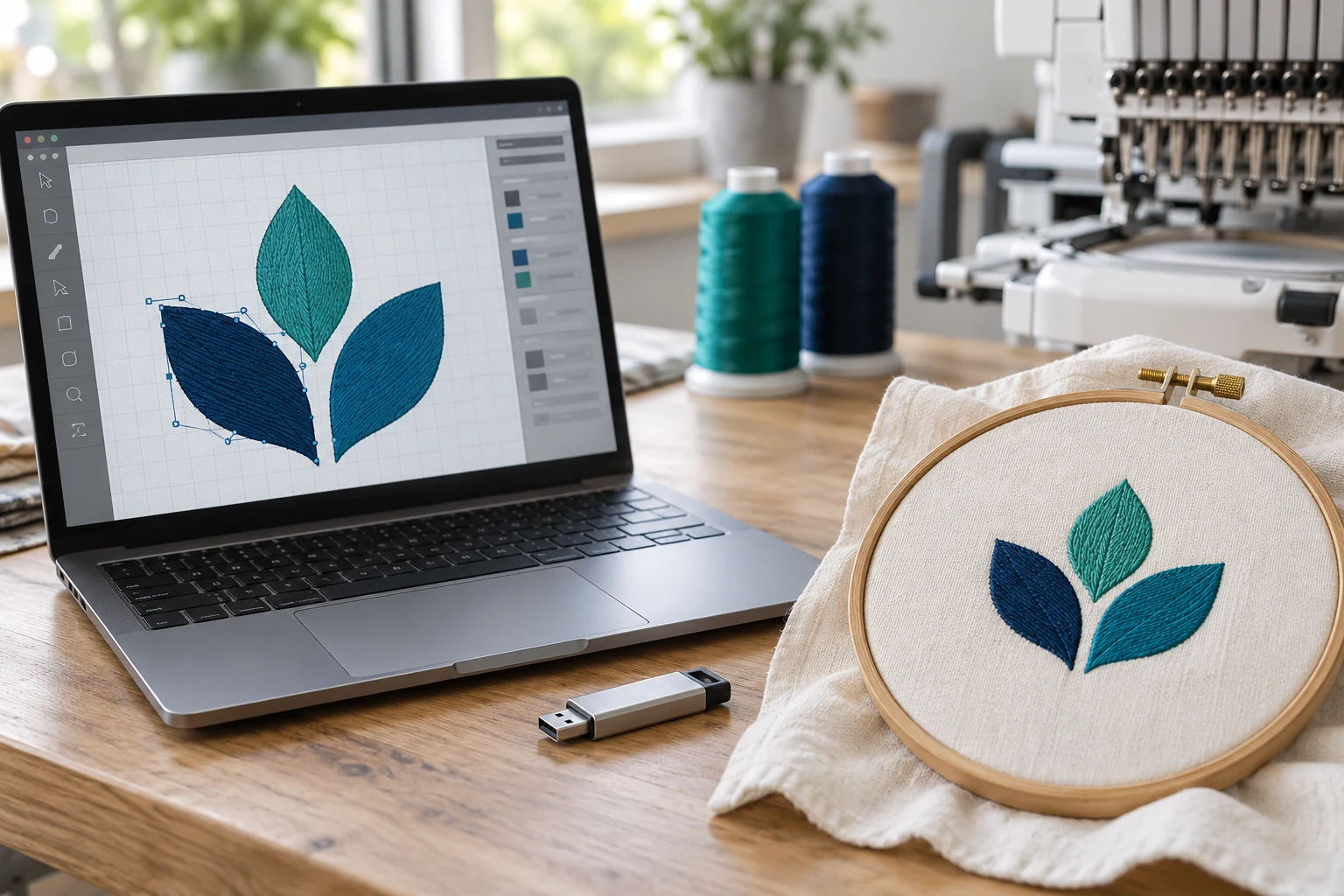
If you’ve digitized a design in one format and suddenly need it for a different machine, you’ve probably searched how to convert PES to DST – or the reverse. The good news is that conversion is possible in both directions using the right software. The catch is that it isn’t always lossless, especially when it comes to color data. This guide covers exactly how to convert PES to DST, how to go the other way (DST to PES), and what to watch out for so your converted file still stitches out correctly.
Why You’d Need to Convert Between PES and DST
Before getting into how to convert PES to DST, it helps to know when this actually comes up:
- Switching machines. You digitized a logo in PES for your Brother machine, but now you need the same design for a Tajima or other DST-based machine.
- Working with someone else’s machine. A friend, client, or shop uses a different brand than you do, and their machine only reads one format.
- Receiving the wrong format. Sometimes a file arrives in PES when you actually needed DST (or vice versa), and re-ordering from scratch isn’t practical.
- Running a mixed fleet of machines. Small businesses with multiple embroidery machines from different brands often need the same design available in more than one format.
How to Convert PES to DST
Option 1: Use Embroidery Digitizing Software
The most reliable way to handle the PES-to-DST conversion is through dedicated embroidery software. Programs like Hatch, Embrilliance, and Wilcom all support opening a PES file and exporting it as DST.
- Open the PES file in your software of choice
- Review the design on screen – check stitch count, size, and general layout
- Use the “Export” or “Save As” function to select DST as the output format
- Save the new DST file
- Run a test stitch-out before using it for a final project
Option 2: Use a Free or Online Converter
Several free tools and websites offer basic PES-to-DST conversion without needing full digitizing software. These can work for simple designs, but quality control is more limited – there’s no built-in way to review or adjust the file before exporting, so always test stitch the result before relying on it.
What Happens to Color Data When You Convert PES to DST
This is the most important thing to understand about how to convert PES to DST: PES stores thread color information, but DST generally doesn’t. When you convert, that embedded color sequence is typically lost. To work around this:
- Note down the color sequence from the original PES file before converting (most software will display it)
- Create a simple color chart or reference sheet to go along with the new DST file
- Some conversion tools can export a color worksheet alongside the DST file – check if your software offers this
Skipping this step doesn’t stop the DST file from working, but you (or whoever stitches it) will be guessing at thread colors without a reference.
How to Convert DST to PES (The Reverse Process)
Going the other direction follows a similar process, but with a different consideration.
- Open the DST file in your embroidery software
- Since DST doesn’t carry color data, you’ll likely need to manually assign thread colors as part of the process
- Export or save the file as PES
- Double-check the color assignments on screen before finalizing
- Test stitch to confirm everything lines up correctly
Because DST doesn’t include color information to begin with, converting to PES means you’re essentially adding color data that wasn’t there – not recovering something that was lost. This is the opposite problem from converting PES to DST, where color data already exists and gets stripped away.
Does Converting Between Formats Affect Stitch Quality?
Generally, the stitch data itself (needle paths, stitch types, density) carries over accurately in both directions. What’s more likely to shift is:
- Color accuracy, as covered above
- Minor formatting quirks, depending on which software handles the conversion
- Compatibility with machine-specific features, if the original format included settings specific to one brand that don’t translate cleanly to another
For straightforward designs – logos, text, simple shapes – conversion in either direction tends to be reliable. For highly detailed designs with many colors or fine stitch work, it’s worth test stitching before committing to a final product, since small discrepancies are more likely to show up.
When Converting Isn’t the Best Option
Sometimes it’s actually faster and more reliable to skip conversion altogether and have a design digitized directly in your target format from the start. This makes sense if:
- You know in advance you’ll need multiple formats (many digitizing services can provide more than one format in the same order)
- The design is highly detailed, where conversion quality matters more
- You don’t have access to software that handles the conversion cleanly
Converting is a useful fallback, but digitizing directly into the format you need avoids the color-data guesswork entirely.
Quick Reference: What to Expect
| Conversion Direction | What’s Lost or Added | What to Do About It |
| PES → DST | Color sequence data is lost | Note colors beforehand or create a reference chart |
| DST → PES | Color data must be added manually | Assign colors carefully, confirm on screen before saving |
Frequently Asked Questions
Can I convert PES to DST for free?
Yes, several free tools and software trials support this. Quality and ease of use vary, so testing the output before relying on it for a final project is always a good idea.
Will my design look exactly the same after converting?
The stitch pattern itself usually transfers accurately. The main thing that changes is color data, which is lost when going from PES to DST, and needs to be manually added when going from DST to PES.
Is there a way to keep color data when converting PES to DST?
Not within the DST file itself, since the format doesn’t support it the same way. The common workaround is generating a separate color chart or worksheet to go along with the converted file.
Do I need professional software to convert between formats?
Not necessarily for simple designs – free or online converters can handle basic conversions. For detailed designs or regular conversion needs, dedicated embroidery software usually gives more control and more reliable results.
Final Thoughts
Knowing how to convert PES to DST – and how to go the other way – comes in handy any time you’re working across different embroidery machine brands. The process itself is usually simple, but the real thing to watch for is color data: it’s there in PES and gets lost in DST, so a quick color reference saves you from guesswork later. For anything detailed or important, a test stitch-out before the final run is always worth the extra few minutes.
If you’d rather skip the conversion process altogether, you can send your design over for digitizing and get it delivered directly in whichever format – or formats – your machines need. You can also browse ready-made, pre-digitized designs on our Etsy shop, already available in multiple formats.